
ChatGPT can summarize a PDF by analyzing an uploaded file and turning its contents into a shorter, more useful overview. You can ask for a quick summary, key points, section-by-section notes, or answers based on the document. In this guide, we’ll show you how to summarize a PDF with ChatGPT step by step, including what to do with long or scanned PDFs and how to get better results.
Table of Contents
How to summarize a PDF with ChatGPT
The easiest way to summarize a PDF with ChatGPT is to upload the file directly into a chat and tell ChatGPT exactly what kind of summary you want. A clear prompt matters: instead of simply asking “summarize this PDF,” you can specify the length, format, topics, or sections you want covered.
1. Upload Your PDF to ChatGPT
Open ChatGPT and start a new conversation. Click the + button next to the message box, choose the option to add a file, and select the PDF you want to summarize. Once the file finishes uploading, you can give ChatGPT instructions about how you want the document summarized.
For more information about supported files and upload limits, see OpenAI’s official File Uploads FAQ.
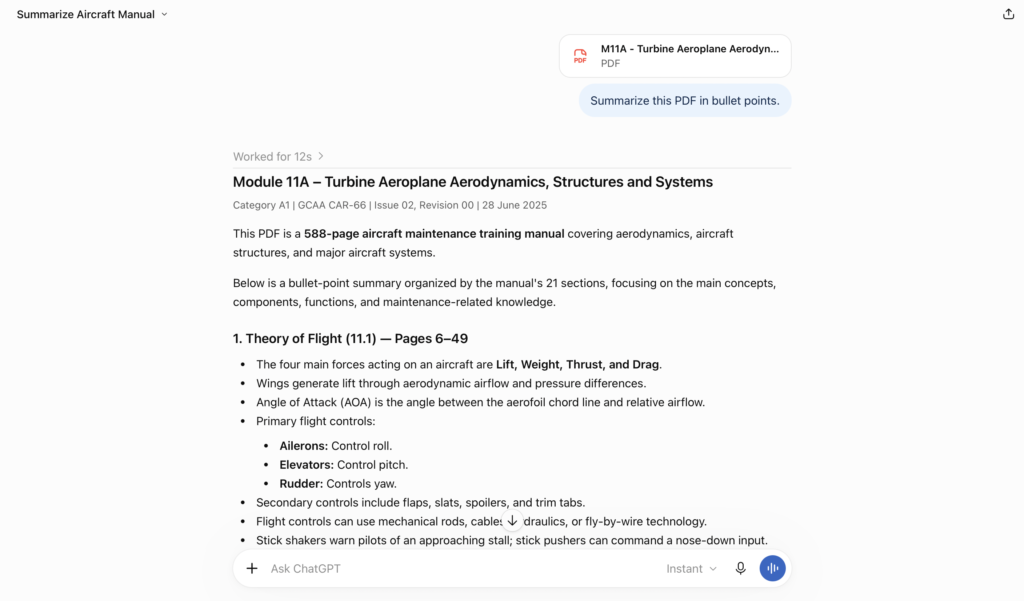
2. Tell ChatGPT What Kind of Summary You Want
After uploading the PDF, write a specific prompt describing the result you need. You can ask for a short overview, detailed notes, key takeaways, a section-by-section summary, or an explanation of specific topics. The more specific your instructions are, the easier it is to get a useful response.
3. Use a Clear Prompt for Better Results
A good prompt gives ChatGPT a clear task instead of leaving the format open-ended. For example, you can ask it to summarize the document in five key points, identify the main arguments, explain technical terms in simple language, or create notes organized by section. If accuracy matters, ask ChatGPT to reference the relevant page or section when possible.
Best ChatGPT Prompts for Summarizing a PDF
The best prompt depends on what you need from the document. Instead of using the same request every time, choose a prompt that matches your goal.
Quick Summary
Summarize this PDF in 5–7 bullet points. Focus on the most important ideas, conclusions, and supporting information. Keep the summary concise and do not add information that is not supported by the document.
Detailed Summary
Create a detailed summary of this PDF. Organize the summary by the document’s main sections or topics. For each section, explain the key ideas, important evidence, and conclusions. Preserve important names, dates, figures, and technical terms, and clearly indicate anything that is uncertain or not stated in the document.
Study Notes
Turn this PDF into clear study notes. Organize the information by topic, highlight the key concepts and definitions, and explain difficult ideas in simple language. Include the most important facts to remember and finish with a short list of questions I can use to test my understanding.
Research Paper Summary
Summarize this research paper by identifying the research question, methodology, key findings, and main conclusions. Explain the results in clear language and note any limitations mentioned by the authors. Do not introduce claims that are not supported by the paper.
Long PDF Summary
Summarize this PDF section by section. For each section, identify the main idea, key supporting points, important facts or figures, and any conclusions. Keep the sections separate so important details are not lost. At the end, provide an overall summary that connects the main ideas across the entire document.
How to Summarize a Long PDF With ChatGPT
ChatGPT can work with long PDF documents, but longer files benefit from a more structured approach. Instead of asking for one broad summary, ask ChatGPT to identify the document’s main sections first and summarize them individually. You can then request a final overview that connects the key ideas across the entire PDF. This approach can make the summary easier to review and reduce the chance of important details being overlooked.
For a ready-to-use example, see the Long PDF Summary prompt in the section above.
Example prompt for long PDFs
Summarize this PDF section by section. First, identify the document’s main sections. For each section, explain the key ideas, important facts, and conclusions. Include page references where possible, and clearly state if any information could not be verified from the document. Finish with a concise overall summary connecting the main findings.
Can ChatGPT Summarize Scanned PDFs?
ChatGPT can summarize scanned PDFs, but the results depend on how the file is processed and which features are available in your plan. Some PDF uploads are processed primarily as text, meaning information contained only in scanned images may not be accessible. If ChatGPT cannot read a scanned PDF properly, try uploading clear images of the relevant pages or using OCR software to convert the document into searchable text. Always verify important details against the original document.
How to Get Better PDF Summaries From ChatGPT
The quality of a PDF summary depends heavily on the instructions you provide. Tell ChatGPT what information matters most, how detailed the response should be, and how you want it formatted. For important documents, compare key claims, numbers, and conclusions with the original PDF rather than relying on the summary alone.
Be Specific About the Output
Tell ChatGPT exactly what you want from the PDF. Specify the desired length, format, level of detail, and topics to prioritize. For example, you might request a 200-word executive summary, five key takeaways, or detailed notes focused only on a particular chapter.
Ask ChatGPT to Focus on What Matters
If you only need specific information, say so in your prompt. You can ask ChatGPT to focus on conclusions, recommendations, statistics, arguments, risks, or a particular topic instead of summarizing every part of the document equally.
Verify Important Information
Treat the summary as a starting point, not a replacement for the original document. If the PDF contains important dates, statistics, quotations, research findings, or instructions, check those details against the source before relying on them. You can also ask ChatGPT to identify the relevant page or section so you can verify important claims more quickly.
Common Problems When Summarizing PDFs With ChatGPT
PDF summarization does not always work perfectly on the first attempt. Problems can come from the document itself, the way the information is formatted, or instructions that are too broad. Here are some common issues and practical ways to handle them.
The Summary Is Too General
If the summary feels vague or misses important details, make your prompt more specific. Tell ChatGPT which topics, sections, or questions to focus on and specify the level of detail you need. You can also ask it to expand on individual sections instead of generating the entire summary again.
Important Information Is Missing
If important information appears to be missing, ask ChatGPT to review a specific section of the PDF rather than repeating the same general request. Point it to the relevant chapter, heading, table, or topic and ask for a focused summary. Always compare critical details with the original document.
Tables, Charts, or Complex Layouts Are Misread
PDFs with tables, charts, multiple columns, or complex layouts can be harder to summarize accurately. If a particular visual or table matters, ask ChatGPT to analyze that part specifically and verify important values against the original PDF. For critical figures or data, do not rely on the generated summary alone.
The PDF Is Too Long or the Summary Feels Incomplete
For very long documents, avoid relying on a single broad request. Ask ChatGPT to summarize the PDF section by section, then request a final overview that combines the main findings. You can also focus on specific chapters or topics when you do not need a summary of the entire document.
Frequently Asked Questions
Can ChatGPT summarize a PDF?
Yes. You can upload a supported PDF to ChatGPT and ask it to summarize the document, extract key information, explain specific sections, or answer questions based on its contents.
Can ChatGPT summarize a long PDF?
Yes, but for long PDFs, a structured approach usually produces a more useful summary. Ask ChatGPT to summarize individual sections or chapters first, then create an overall summary that connects the main ideas. This also makes it easier to check whether important information was missed.
Can ChatGPT summarize scanned PDFs?
ChatGPT may be able to work with scanned PDFs when their visual content can be interpreted, but results can vary depending on scan quality, layout, and document complexity. If important text or numbers are missed, try providing clearer pages or a text-based version of the PDF and verify critical information against the original document.
Is ChatGPT a Good PDF Summarizer?
ChatGPT can be useful for turning PDFs into shorter summaries, key takeaways, study notes, or answers to specific questions. However, the quality of the result depends on the document and your prompt. For important academic, legal, financial, or technical information, verify key details against the original PDF before relying on the summary.
Can I Ask ChatGPT Questions About a PDF?
Yes. After uploading a PDF, you can ask ChatGPT questions about its contents instead of requesting a full summary. For example, you can ask it to explain a specific concept, find the main conclusions, compare sections, identify key arguments, or locate information related to a particular topic.
Final Thoughts
Summarizing a PDF with ChatGPT is most useful when you give it clear instructions about what you need. Upload the document, choose the right type of summary, and refine your prompt when necessary. For longer or more complex PDFs, working section by section can make the results easier to review. Most importantly, always verify critical facts, figures, and conclusions against the original document before relying on them.
If you’re interested in exploring another AI tool for working with documents, check out our step-by-step guide on how to use NotebookLM.